
Microsoft Entra Tenant Configuration
Overview
This guide describes how to configure authID as an External Authentication Method (EAM) in Microsoft Entra ID so it can be used as a biometric second factor during MFA challenges.
This configuration is performed entirely in Microsoft Entra and assumes an existing authID OIDC connection has already been created.
Prerequisites
- Microsoft Entra ID tenant
- Global Administrator or Authentication Policy Administrator role
- An existing authID OIDC integration
- authID OIDC metadata endpoint (standard, fixed OIDC path should go here)
- Client ID issued by authID
Steps
Step 1: Enable External Authentication Methods
- Sign in to Microsoft Entra admin center
- Navigate to: Protection > Authentication methods > External authentication methods
- Set Enable external authentication methods to On
- Save changes
Note:
External Authentication Methods are currently in Preview and must be explicitly enabled per tenant.
Step 2: Register authID as an External Authentication Provider
In External authentication methods, select Add
Provide the following values:
Field Value
Name authID
OIDC client ID Client ID from authID
Issuer authID issuer URL
Discovery endpoint authID (standard, fixed OIDC path should go here)
Step 3: Configure Claims and MFA Expectations
Microsoft Entra validates the following in the MFA response:
- acr must match the value sent in the request
- amr must contain supported authentication method references
- The returned ID token must be signed by the configured issuer
No additional claim mapping is required.
Step 4: Assign authID to Users
- Navigate to: Protection > Authentication methods > External authentication methods
- Select authID
- Assign users or groups
- Save changes
Note:
Only assigned users will see authID as an available MFA method.
Step 5: Require authID via Conditional Access (Optional)
To enforce authID as an MFA method:
- Go to: Protection > Conditional Access
- Create or edit a policy
- Under Grant, select: Require multi-factor authentication
- Apply the policy to the desired users and applications
Step 6: User Experience Validation
If authID is already enabled
- User is redirected to authID during MFA
- Successful biometric verification completes sign-in
If authID is not enabled
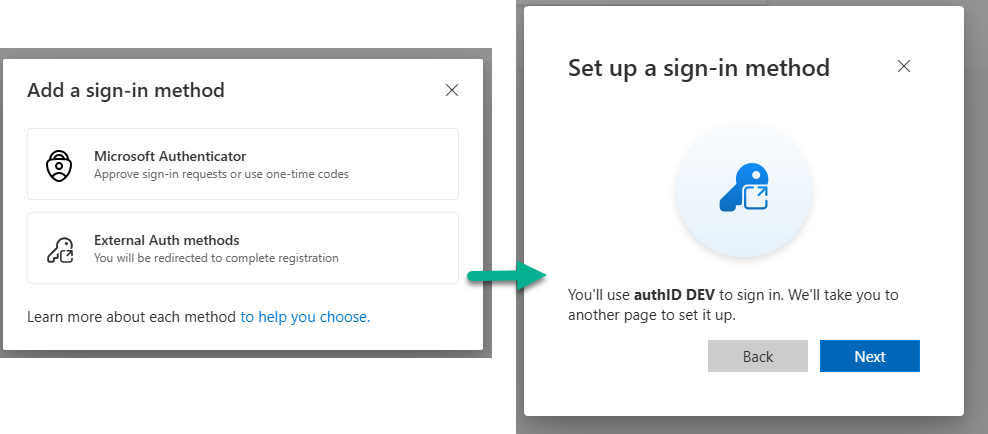
- User navigates to Security Info
- Select Add sign-in method
- Choose External Authentication Methods
- Select authID
- Complete enrollment (if required)
User Experience: Adding authID as a Sign-in Method
WIP
Notes and Limitations
- External Authentication Methods are MFA-only
- Primary authentication remains managed by Microsoft Entra
- Token expiration in id_token_hint is ignored by design
- Microsoft may cache OIDC metadata; allow time for updates
Updated 9 months ago