
Privacy Key Authentication
- Follow steps 1 and 2 under Initiate a Transaction Proof Onboarding
- Select Product step - select Verified
- Select Device and Choose Action step - select FIDO2 Device. Privacy Key Credential is stored as FIDO2 Public Key, however Privacy Key is not bound to the device.
- Setting step - toggle Privacy Key
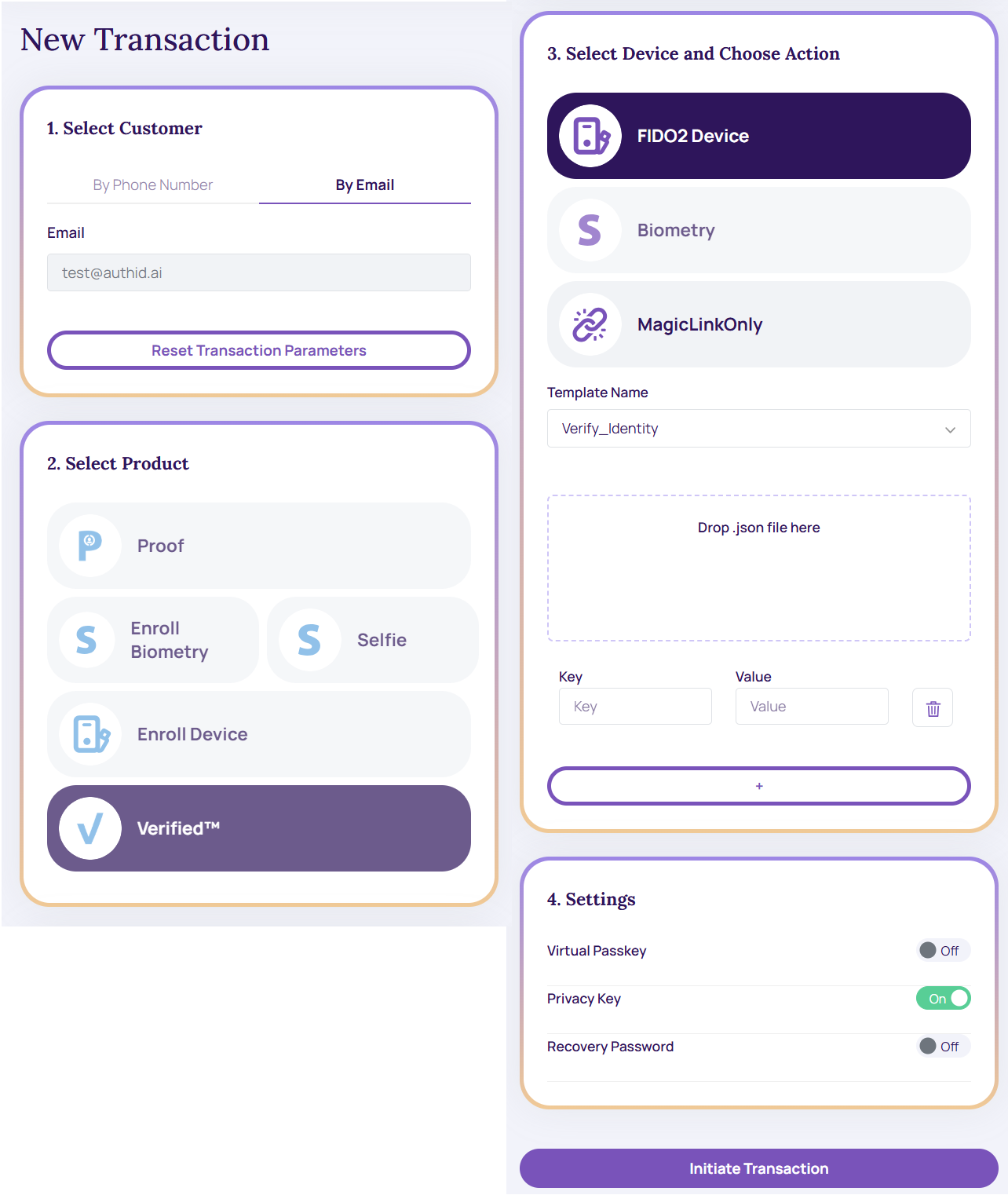
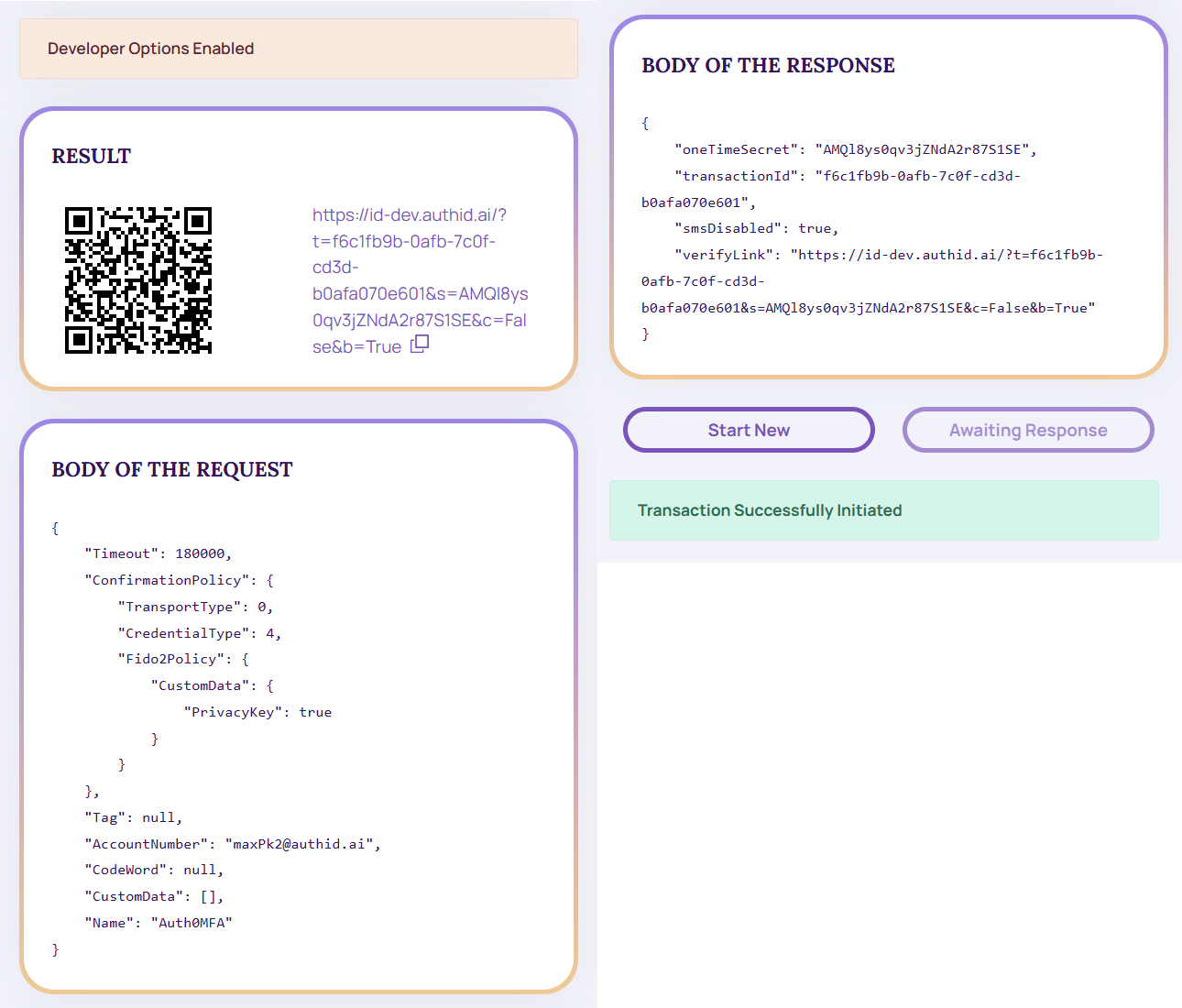
- Tap Initiate Transaction to proceed. The screenshot below shows the result with Developer Options enabled in the Identity Portal Settings.
- Click results link or scan QR code from your mobile device to access end user experience - Verify Your Transaction screen.
- The experience can be customized by modifying / selecting a different Template Name at Step 3 of the transaction initiation.
- Completing the User Experience
Privacy Key User experience is similar to Biometric Authentication
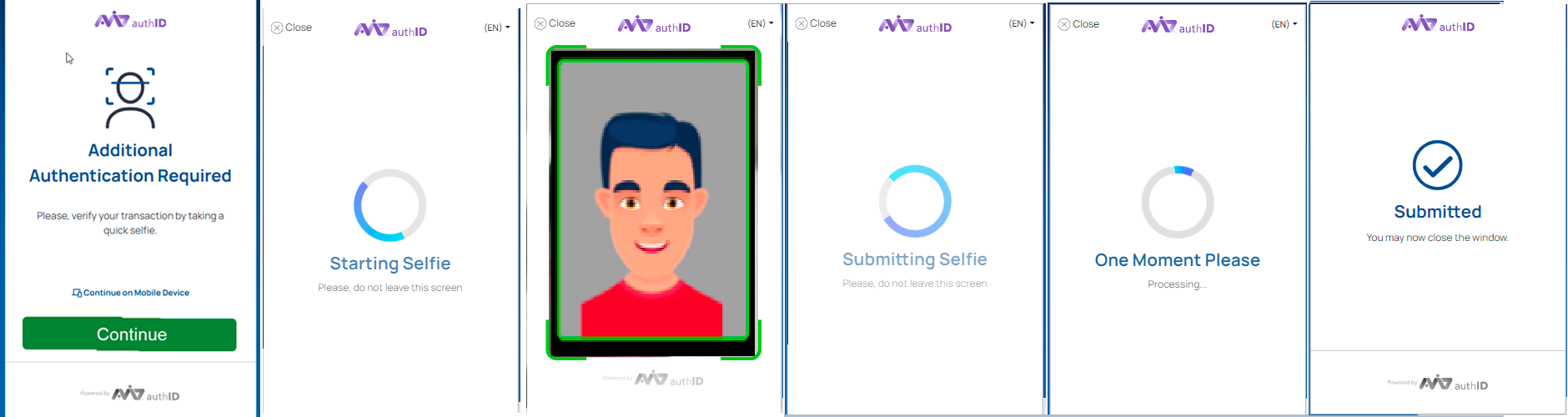
- After user has completed selfie acquisition and processing, the Identity Portal will automatically display Transaction Details screen.
Identity Portal User / Operator can also locate pending transaction in the Verified Transaction List and access Workflow Progress details view showing user's progress through the workflow.
Privacy Key transactions have limited information due to the nature and goals of of privacy-preserving biometrics solution.
Updated 5 months ago
Did this page help you?